

Import a Splitwise CSV: move expenses into PlanLos!
From Tommaso Maiocchi
Months of expenses in Splitwise – and you'd retype everything? You don't have to. Import a Splitwise CSV, map people, check balances: the group kitty lands in a free Splitwise alternative with a bring list. Video included.
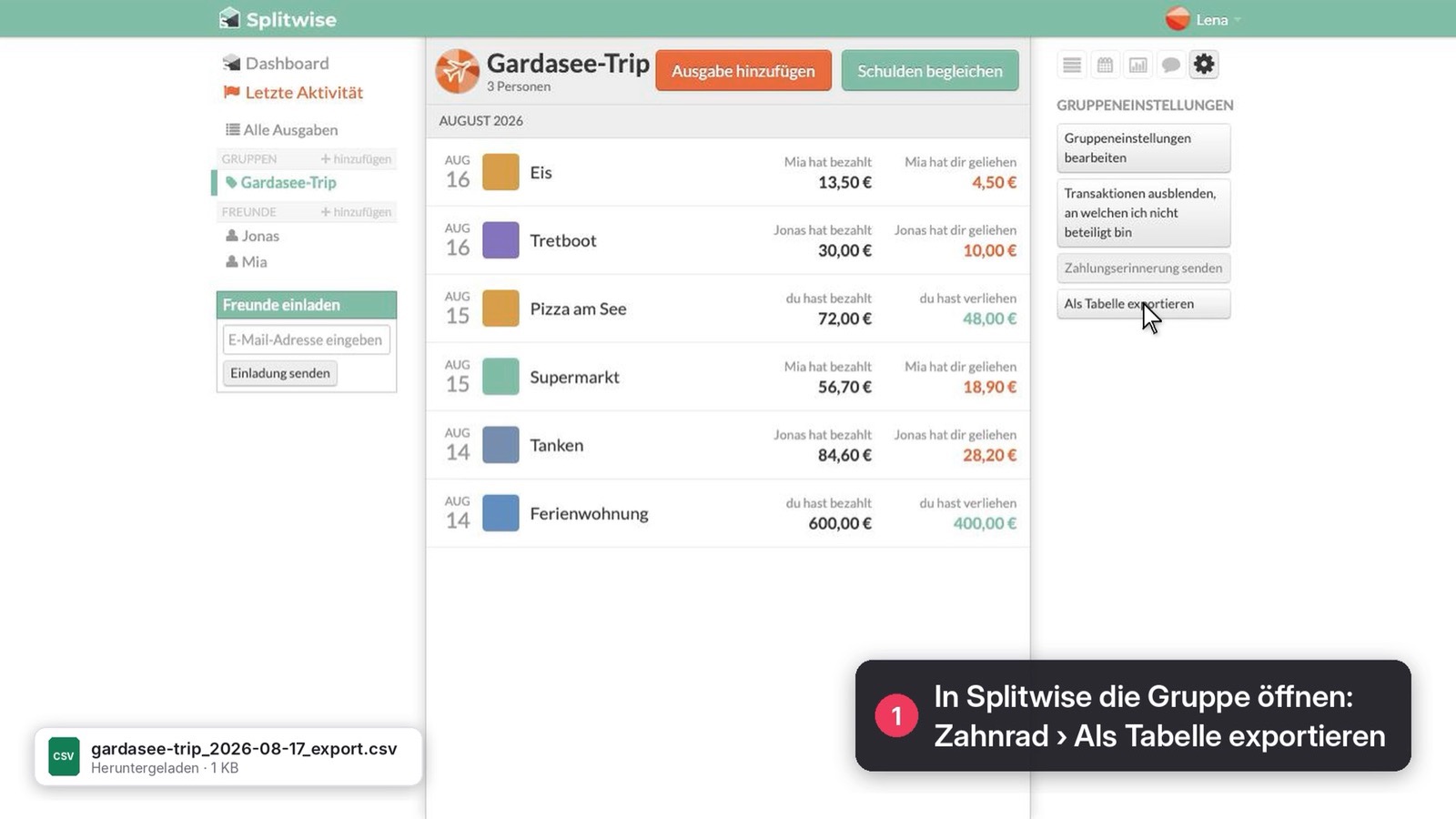
You've already collected months of dinners, fuel and lodging in Splitwise – and you don't want to start from zero just because the group also needs a bring list next to the kitty. That's what the Splitwise import in PlanLos! is for.
The video above shows the path in under two minutes. Below is the full guide: export a Splitwise CSV, upload it in PlanLos!, map people, check balances. Afterwards the group kitty lives in a free Splitwise alternative – same people, same expenses, and room for lists beside them.
What you need
- a free PlanLos! account (guests who only join don't need one – whoever imports does)
- a PlanLos! group with the Costs module on
- the Splitwise export as a spreadsheet (CSV), max. 10 MB
PlanLos! is available in English and German, the servers are in the EU, and everyday group use doesn't need a subscription. How settling up works afterwards is on splitting expenses.
1. Export the group as a spreadsheet in Splitwise
Open the Splitwise group whose expenses you want to move. Tap the gear icon and choose Export as spreadsheet. Splitwise creates a CSV file – that's the Splitwise CSV export PlanLos! can read.
A few practical notes:
- Export one file per group. The import always lands in exactly one PlanLos! group.
- The file is often named after the group and ends in
.csv. - German and English column titles both work (Date/Datum, Description, Category, Cost, Currency).
There's no live Splitwise API here on purpose: PlanLos! only reads the file you download yourself.
2. Create a PlanLos! group (or pick an existing one)
If the target group doesn't exist yet: register, create a group and turn on Costs. Without that module the group won't show up in the import – the expenses need somewhere to go.
Already running a flat-share or trip group? Use that. The import appends Splitwise entries to the existing kitty; it doesn't replace them.
3. Upload the CSV under Account → Import
Sign in and go to Account → Import (Import from Splitwise).
- Pick the target group.
- Drop the CSV in or tap “Drop CSV here or click”.
- PlanLos! reads the file and shows how many entries it found – and, if needed, how many rows were skipped (for example amount 0 or unclear payments).
Wrong group? Step back with “Other group”. Wrong file? “Remove file” and choose again.
4. Map people and check balances
This is the step where the math holds or tips over: map people.
For every name from Splitwise you choose:
- an existing person in the PlanLos! group, or
- “Create new: …” if they're missing
Under each name you see the Splitwise balance in plain language – for example “In Splitwise, Mara owes €42.50” or “In Splitwise, Jonas is settled up.” Does the balance match the person you picked? Good. Swap two people and the kitty ends up upside down.
When the mapping looks right: Import. PlanLos! brings the entries over, creates missing people and briefly reports how many rows and people it was.
What the CSV brings over
A short overview so nobody gets surprised:
- Expenses with title, date, amount and shares (including custom splits)
- Payments / settling up between two people
- Categories when they match PlanLos!' fixed list – otherwise title keywords kick in, and leftovers land under Other
- Foreign currency as a note (the app keeps the kitty in euro; the Splitwise figure is kept and marked)
Not included: receipt photos, Splitwise comments, the group name itself, or live sync. The import is a one-time move, not a continuous mirror.
Rows without a usable amount, without a date or with an unclear payment are skipped and counted in the preview. You see what will arrive before you confirm.
Afterwards: more than the kitty
A lot of people look for a Splitwise alternative because the settling up works – but salad, charcoal and “who's picking up the key?” still live in the chat. In PlanLos! you can turn on Bring and To-dos after the import without leaving the kitty. The building-block comparison is on the Splitwise alternative page; if you're coming from Tricount, see the Tricount alternative.
For the next weekend you can also start fresh: create a group, send the link to the chat, enter the first expense. The features page shows what else sits next to Costs.
FAQ about the Splitwise import
Can I really move my Splitwise data?
Yes. Export the group as a spreadsheet in Splitwise, upload the file in PlanLos! under Account → Import, map people, check balances in the preview, import.
Does everyone need an account?
No. Import and creating the group need an account. People who only join later open the invite link, type their name and they're in – even without signing up.
What about multiple currencies?
Splitwise handles that better. PlanLos! keeps the kitty in euro. Foreign-currency amounts arrive with a note “Splitwise: currency: …” so you can spot them.
Does the import overwrite existing PlanLos! entries?
No. It appends to the group you chose. Existing expenses stay.
Is the import available in the app?
In the browser under Account → Import. Android can use the same flow via the API; iOS is on the way. The steps stay the same: preview, mapping, confirm.
Wrapping up
The Splitwise CSV import is the shortest way to bring a running group kitty into PlanLos! – without retyping everything and without throwing the history away. Watch the video, export the CSV, map people, done. After that you decide whether you only keep splitting costs or finally put bring lists and tasks in the same group.
Start for free, get the CSV ready, and the next settlement lands where the salad list already lives.
Curious?
Create a group, drop the link in the chat – Bring, To-dos and Costs in one place. Free, no subscription.